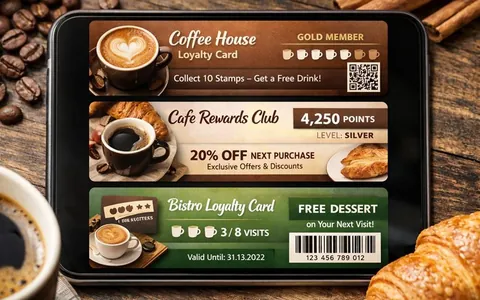
Wallet loyalty card design ideas for a cafe, salon and store
A Wallet card should help the customer quickly understand the benefit and easily use it at checkout or at the front desk.

Implementation and integrations
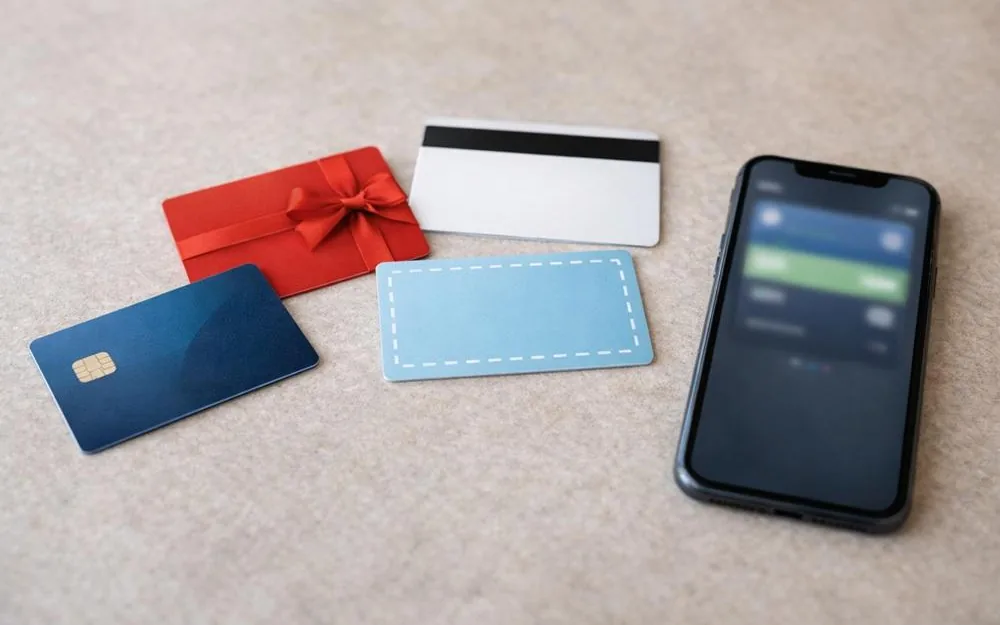
A points card in Wallet is a digital loyalty card. It is stored in Apple Wallet or Google Wallet and shown at checkout as a barcode or QR code. For the customer, it replaces a plastic card. For the business, it is a way to sign up guests faster and lose fewer of them along the way in the loyalty program. For the card to really work, you need to plan two processes: how the customer adds the card, and what the business does so that adding it is simple and doesn't break on small details.
The customer does not add the card "from the app store" but through a link or a QR code. So the business needs to have these ready in advance:
a working link to add the card (or a page that creates this link after the customer enters a phone number)
a QR code that leads to this link
a short, clear hint about what to tap next
The fewer steps, the more people add the card. A good goal is for adding the card to take 10-20 seconds.
On iPhone, the steps usually look like this:
The customer gets a link (by SMS, in a messaging app, by email, on the website) or scans a QR code at the checkout or counter.
The link opens in Safari or in the app's built-in browser.
A button to add the card to Apple Wallet appears on the screen (the name may differ, but the meaning is the same).
The customer confirms, and the card appears in Apple Wallet, ready to show.
What the business needs to plan for:
the link should open without extra pages in between and without having to "download a file by hand"
if you use phone number confirmation, the steps should be short: phone - code - add
the card code on the first screen should scan well, with no tiny elements and no low contrast
On Android the logic is similar, but the screens may look different depending on the phone model and the Google Wallet version:
The customer opens the link or scans the QR code.
An "Add to Google Wallet" action or a similar button appears.
The customer confirms.
The card appears in Google Wallet and is ready to show.
With Android, devices differ more. So before launch, test adding the card in at least a few cases: popular browsers, different phone models, different ways to open the link (QR, SMS, messaging app).
Instructions alone rarely solve the problem if the link is hidden. It is better to plan in advance where to offer the card: in places where it is easier for the customer to say yes.
Places that work:
at the checkout and in the waiting area (a QR code on the counter, a sign, a sticker)
on the receipt or on the terminal screen (if possible)
on the website after the order (the "Thank you" page)
in a message after sign-up or purchase (SMS/messaging app/email)
in the customer's profile on the website (an "Add card" button)
If you have an offline location, the strongest combination is usually: a QR code at the checkout + a short hint from staff + points or a coupon for adding the card.
What is on the card affects how it will be used later. After adding it, the customer should understand at once that the card is "live" and not just a picture.
On the first screen, show:
the code to show at checkout (QR or barcode)
the current points balance or the discount size
a short note on the rules (1-2 lines or a link to the rules)
a support contact or a quick link to the customer portal
If the first fields are empty, the customer often thinks the card does not work and stops opening it.
The most common question after launch is why the points didn't change. If the card shows a balance, it should update in a predictable way after each transaction: earning, redeeming, refund.
How to get fewer support requests:
decide in advance how long an update may take, and stick to it
if the update is not instant, say so briefly in the rules (in plain words)
test real transactions at the checkout: purchase, refund, redeeming points, a repeat purchase
If the customer sees that the balance does not match the purchase, nothing hurts trust in the loyalty program faster.
The link opens, but there is no add button.
Most often the link was opened in an unsupported app or browser, or the page gives the wrong format for the wallet. The fix: check the link and test opening it from different sources (QR, SMS, messaging app).
The card was added, but the code doesn't scan.
Reasons: low contrast, a small code, a barcode format that doesn't suit certain scanners. The fix: test on your own equipment and adjust the code size or type.
The customer added the card twice.
This happens if the person opens the link again. The fix: use one card ID per customer and handle repeat adding correctly.
Points don't update, or update late.
Reasons: the POS system doesn't send the event, an integration error, or updates run on a schedule. The fix: monitor events and run test transactions before launch.
Staff don't need a long script. One set phrase is enough, so that adding the card doesn't slow down service:
"Scan the QR code, tap to add the card to your wallet, then show this code at checkout, and points will be added automatically."
This is usually enough if the link and the card page have no extra steps.
How do you add a points card to a wallet if the customer doesn't want to install an app?
The card is added through a link or a QR code. No app is needed: the card is stored in Apple Wallet or Google Wallet.
Can you add the card if the internet is weak?
Usually you need internet access to add the card. After that, showing the code often works without a stable connection, but balance updates may depend on the connection.
Why didn't the points appear right after the purchase?
The update may be delayed, or there may be a problem passing data from the POS system to the CRM. Check this with test transactions and set an acceptable update time.
What if the card was added but doesn't scan at checkout?
Check the contrast and size of the code, and the code type your equipment supports. It is better to test on a real scanner before you launch at all locations.
Can you restore the card if the customer deleted it from the wallet?
Yes, usually it is enough to open the link or scan the QR code again and add the card once more
A Wallet card should help the customer quickly understand the benefit and easily use it at checkout or at the front desk.
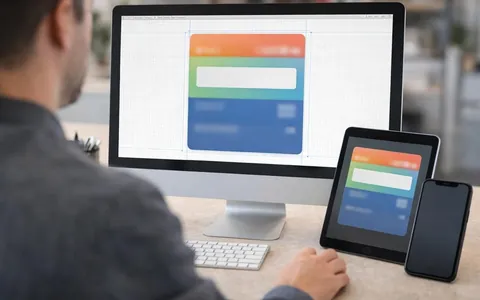
The banner and graphics on a Wallet card are not there just to look nice. They help people recognize and read the card. A customer opens the card at checkout in a hurry, sometimes in bright light, on different screens.
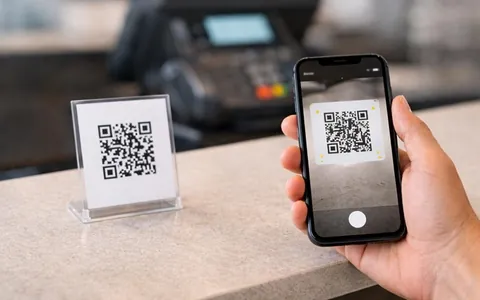
A discount card in Wallet is a digital version of a plastic discount card. It is stored in Apple Wallet or Google Wallet and shown at checkout as a QR code or barcode