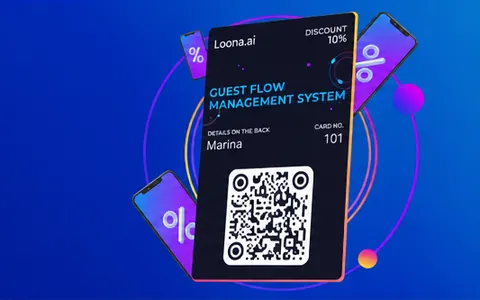
A discount card in Wallet is a digital version of a plastic discount card. It is stored in Apple Wallet or Google Wallet and shown at checkout as a QR code or barcode. For the customer, it's quick access to the discount without plastic. For the business, more cards are actually used, because the card is always at hand. In this article, we'll look at how to add a discount card to Wallet on iPhone and Android, and what to do so the card doesn't disappear, doesn't get duplicated, and updates correctly.
How a discount card differs from a points card in everyday use
The main job of a discount card is to show the discount size and give a code to scan. A points balance and earning points are usually not needed here, but there are other details:
the discount can be fixed (for example, 5%) or tier-based (depends on the status)
the card can change when the customer moves to a new tier
the card can have an expiry date or terms of use (for example, "can't be combined with promotions")
So it's important that the first screen shows: the current discount, the status (if there is one), and the code to show.
How to add a discount card to Wallet on iPhone
On iPhone, the steps are usually the most direct:
The customer gets a link to add the card (by SMS, in a messaging app, by email, on the website) or scans a QR code at the counter/checkout.
A page opens with a button to add the card to Apple Wallet.
The customer confirms - the card appears in Apple Wallet.
To use the discount, the customer opens the card and shows the code to the cashier or the scanner.
What the business should keep in mind:
the link should open without extra downloads or extra steps
the card name should be clear, so the customer can easily find it among other cards
the code should scan reliably on your own equipment (check this before launch)
How to add a discount card to Wallet on Android
On Android, adding works the same way, but the screens may look different:
The customer opens the link or scans the QR code.
An "Add to Google Wallet" action or a similar button appears.
The customer confirms - the card is saved in Google Wallet.
When paying, the customer shows the code to scan.
Here it's important to test on different devices and browsers. If some users open the link from a messaging app, make sure adding works in the app's built-in browser.
Why the card "gets lost" and what it means in practice
Most often, "the card is lost" means one of these common cases:
the card is added, but the customer can't find it in Wallet
the customer added the card again and sees duplicates
after the discount update, the customer thinks the card is gone, because the picture or the name changed
the customer changed phones, and the card didn't move over automatically
the link to add the card no longer works or leads to an old version of the card
You can solve these problems in advance with well-planned logic for the card ID and updates.
How not to lose the card after a discount update
Updating a discount is a normal task: the customer moved to a new tier, the business changed the rules, updated the design, added fields. A proper update should change the data but not "break" the card.
To keep the card from disappearing, follow a few rules:
1) One customer - one card
The system should have one card ID linked to the customer profile. Then opening the link again doesn't create a "second" card but leads to the same one.
2) Don't change the link without a reason
If you give out cards through a link, it should lead to the current card. If you change the domain, the page structure or the CRM logic, keep the redirects correct. Otherwise customers will add an old version.
3) Update the name and visuals carefully
If you suddenly change the card name, it's harder for the customer to find it. It's better to keep a name format people recognize and make changes step by step. This is especially important for chains.
4) Explain that updates happen automatically
If the discount becomes tier-based or the design changes, a short line in the rules means fewer questions: "Your discount and status update automatically after a purchase" or "An update can take up to N hours". This is better than leaving the customer without an explanation.
A practical checklist for the business before launch
Below is a basic set of checks that cuts losses and support requests. It's easy to run with a test group of staff:
the card can be added by link and by QR code
the card can be found in Wallet by search and by name
the code scans on a real scanner/POS
when the discount changes in the CRM, the field on the card updates correctly
opening the link again doesn't create a duplicate
there is a clear way to get the card back: a link in SMS/the customer's personal account/on the website
The list is short, but it covers most problems at the start.
What the customer should do if the card doesn't show
If a customer says the card is gone, one of these simple steps usually helps:
open Wallet and search by the card name
check the "All cards" section or the list of saved cards (depending on the interface)
open the original link or scan the QR code again and add the card again (if the system doesn't create duplicates)
after changing phones - add the card again by the link, instead of waiting for it to move over automatically
It's important that the business can quickly send the customer a new link without manual work and long back-and-forth.
How to word the instructions at the point of sale
At the checkout, you need a short, clear line without details:
"Scan the QR code, tap to add the discount card to Wallet, then show this code when you pay - the discount will apply automatically."
If the discount is tier-based, you can add one line: "Your discount size updates after purchases".
FAQ
How do I add a discount card to Wallet if the customer has an iPhone?
Open the link to add the card or scan the QR code, tap to add it to Apple Wallet and confirm. After that, the card appears in Wallet, and you can show it at checkout.
How do I add a discount card to Wallet on Android?
The customer opens the link or scans the QR code, taps to add it to Google Wallet and confirms. After that, the card is stored in Google Wallet and shown when paying.
Why does it seem like the card is gone after a discount update?
Most often the name or the design changes, and the customer doesn't recognize the card in the list. Another case - the customer added a duplicate and is looking for the old version. The fix - search by name and add the card again by the correct link.
Can you make sure duplicates don't appear when the card is added again?
Yes. For this you need "one customer - one card" logic and one ID in the CRM. Then opening the link again leads to the same card.
What should I do if the code on the card doesn't scan?
Check the code type and contrast, and test it on your scanner. Sometimes it helps to change the barcode format or make the code area on the card bigger