
How to prepare information for a restaurant's AI Hostess
What restaurant details to collect for the AI Hostess: addresses, hours, menu and terms. How to agree on updates and check the answers to guest questions.

Implementation and integrations
To remove a leaving employee's access to the guest database, agree with the administrator on when access will be turned off, and check every work login the person used. Hand over open inquiries to a coworker and make sure they can continue them from their own account. Before deleting the account, find out what will happen to the history the restaurant needs: the steps depend on the system.
Start with a short list: where the person had access, who removes it and who takes over the answers promised to guests. With this list, it will be easier for the general manager and the administrator to split the work. The steps below will help you organize the handover. Check the exact actions in your CRM with the person who manages access.
Choose one person who makes the decision and one person who makes the changes. The general manager says when the employee finishes work; the administrator finds out which actions are available and checks the result. If a contractor handles your integrations, include them in the handover in advance.
If the departure is planned, collect the open inquiries and assign a coworker before the agreed time. If access must be cut off urgently, first have an authorized administrator remove it. Don't wait until the employee finishes all their tasks: agree on the rest of the handover separately, and keep the work history you need.
In the record, write the date, the time and the time zone. Wording like "turn off after the shift" can be understood in different ways, especially if an outside specialist works with the restaurant.
The staff list in the CRM shows only part of the possible access. Find out which work channels the person really used. You don't need to include every service the restaurant has: check the logins they could have used to work with guest data.
| What the employee used | What to ask the administrator to do | What to check after the change |
|---|---|---|
| Their personal CRM account | End access in the way the system provides; find out what happens to sessions that are already open | Confirm the status of the account and what was done with the sessions |
| A shared login and password | Agree on a password change and give access to the current team | The old login details no longer give access, and coworkers can work |
| Work email, a messaging app or bot management | Check the permissions given and the ways to recover access | The management rights given to the person are taken back; the restaurant keeps control of the channel |
| A service integration set up with their help | Find out whose rights it runs on and what changes are needed | The access tied to the employee is taken back or set up again as agreed; the data exchange you need keeps going |
If the employee helped set up an integration, ask the administrator to find out whether it depends on their account. Turning off every integration without checking may stop processes the restaurant needs. First, find out which rights the integration uses. Then agree on moving control over it or on taking back the access tied to the person.
Check the shared password separately, even if the personal account is already closed. Also review the ways to recover access: for example, whether a work login is still linked to the leaving person's email or phone number. Use an agreed work method for the handover; you don't need the employee's personal password for it.
When you change a shared password, also ask the administrator what happens to sessions that are already open and whether you need to do anything to end them.
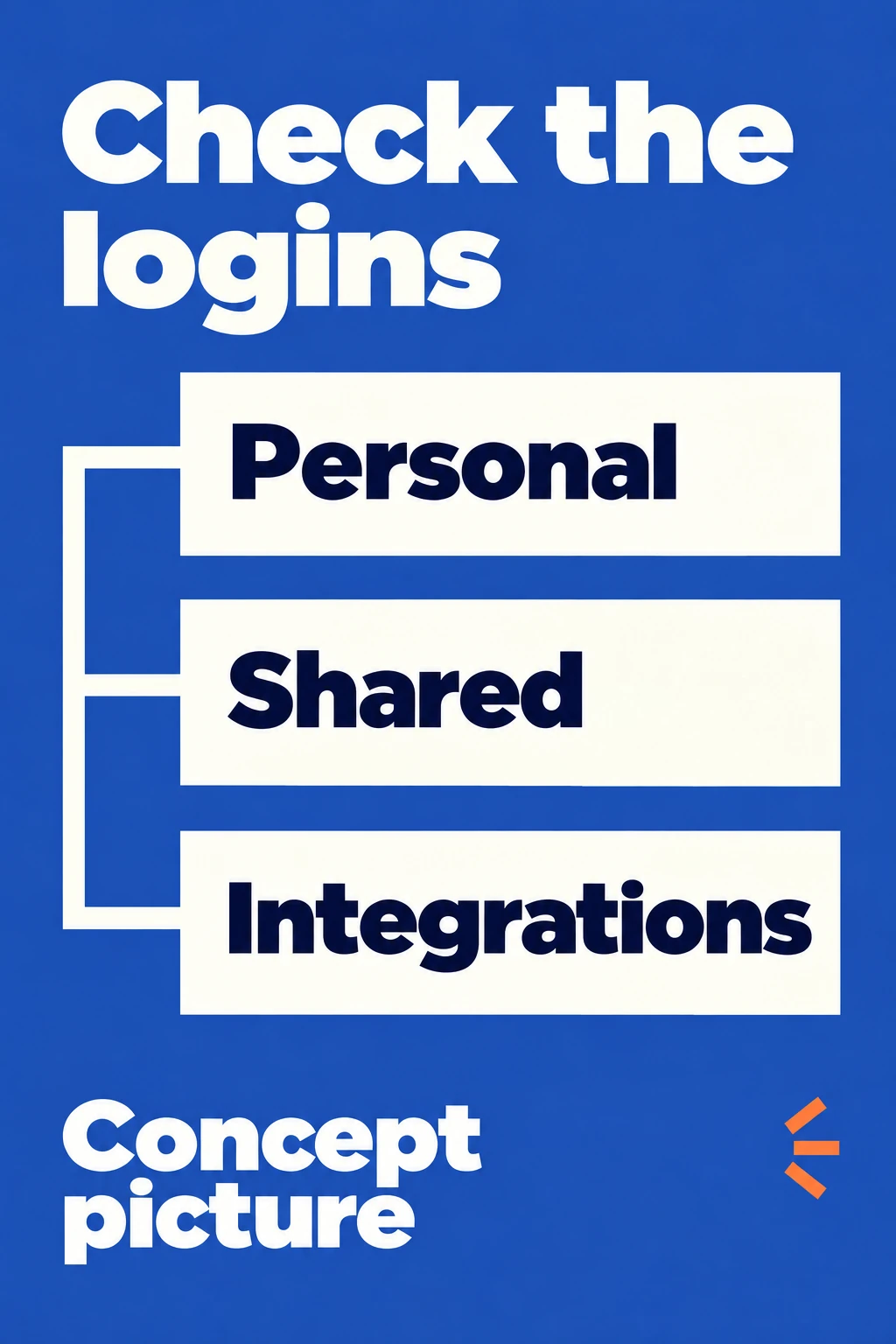
A diagram for checking work logins, not a product screen. The personal account, the shared login and integrations are checked separately; the exact set depends on your restaurant.
Ending a person's access and deleting their account can be two different actions. Before deleting, ask the administrator what will happen to linked records, messages and assigned tasks. Choose an available option that blocks the login and keeps the history you need for work.
Don't delete guest profiles to end an employee's access. They may hold details the current team needs. And don't turn someone else's account into a new coworker's account: hand over the work tasks, and give the coworker their own access that fits their duties.
The Loona.ai CRM lets you set staff permissions, including limits by section, location, personal data and confidential information. If you work in this CRM, ask the administrator or the implementation team how to end access: what to do with open sessions and what history will be kept after the chosen action. This way, you agree on the action before you change the account.
You can read more about what goes into a work history in the article about a single guest profile. When an employee leaves, the task is narrower: keep the records you need and leave access to them for the people who keep working.
Make a short list of promises: a link to the work record, what was promised to the guest, the agreed deadline, the new person in charge and the next step. Instead of exporting the whole database, use links inside the approved system. Don't move guests' phone numbers and other data into an open handover spreadsheet.
A made-up example: an employee promised to check if an event can be held and to get back with an answer by an agreed time. The coworker needs the original record, the terms already discussed and the next step: get the general manager's decision and contact the guest. After you assign the person in charge, ask them to open the record and confirm that they understand what answer is expected and when it must be given.
Also check the tasks linked to the inquiry, if your team uses them. Whether the handover can be automatic and what can be moved depends on the system. Where a ready-made action is not enough, split the remaining steps between the administrator and the new person in charge.
The coworker needs permissions for their own work, not all the powers of the person before them. If they can't see a record they need, work out the right limit together with the administrator. Don't use someone else's login to get around it.
After the changes, get two separate results.
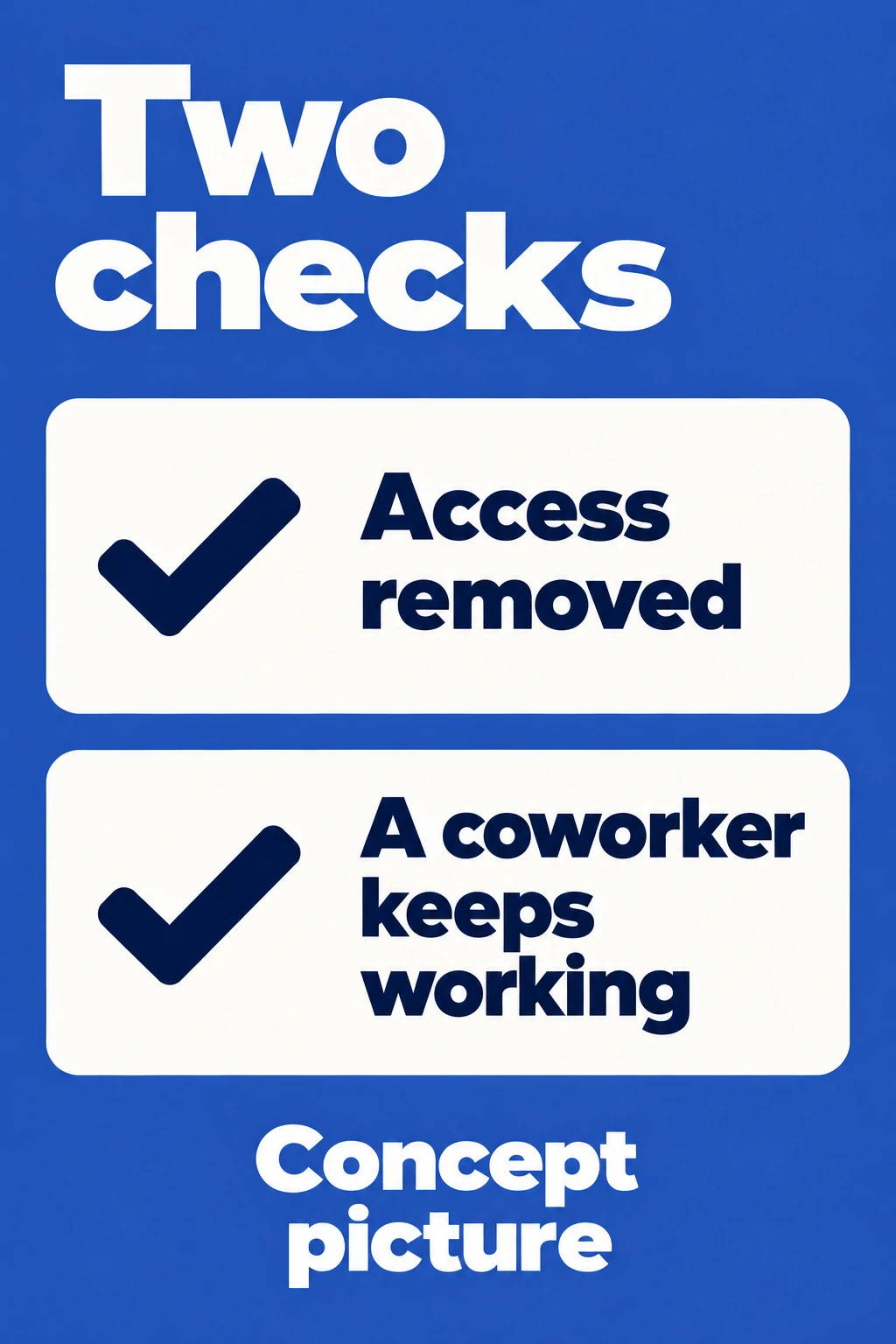
A work diagram, not a product screen. Confirm two things separately: the old access is removed, and the coworker can continue the work.
If the personal login is turned off but it's still unclear what happens to an integration, keep this as a separate open item. Assign someone to it, set a date to find out, and agree on a temporary way of working. Writing "everything is closed" in this case hides what still has to be checked.
You can keep the card in the work system your team already uses, with limited access. This is a suggested template, not a built-in CRM form:
Don't keep passwords, tokens or a copy of the guest database in the card. If you need a link to a work record, keep in mind who can see the handover card itself.
Turning off work logins doesn't mean that copies of data made earlier are gone. If there are signs of a data leak, save the evidence you have and bring in the person responsible for security or personal data. This is a separate review, and a note that the employee's access was turned off should not replace it.
Before you finish, check the card: every work login on the list should have a check result, and every open inquiry should have a coworker who took on the next step. If an item is not closed yet, keep the person responsible and the deadline next to it, so the current team knows what still needs attention.
What restaurant details to collect for the AI Hostess: addresses, hours, menu and terms. How to agree on updates and check the answers to guest questions.

How to check with your team how points are earned and redeemed and one key limit of your points program. Then write down any mismatches and choose the next step before launch.
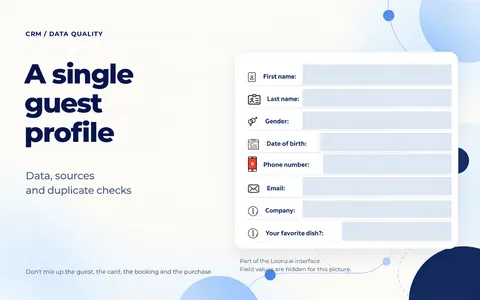
What data a restaurant needs in a guest profile: sources, consent and duplicate checks. How to prepare your database for CRM without mixing up guests, cards and purchases.